
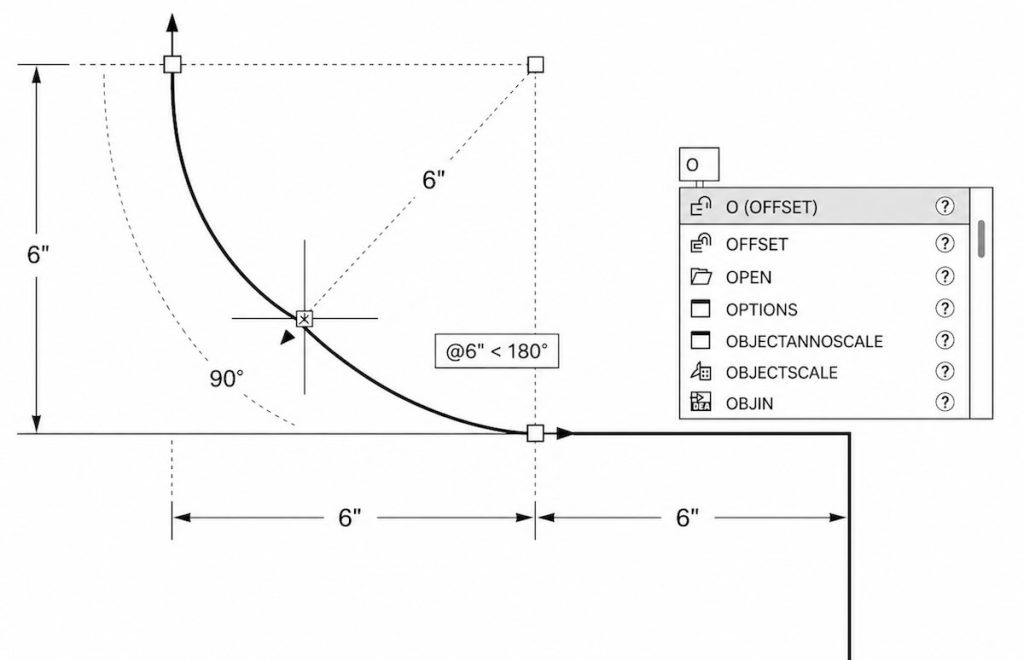
Many AutoCAD users either ignore Dynamic Input completely or turn it off without really understanding what it does.
At first, DYNMODE can feel distracting because it adds prompts and measurements directly at your cursor. But once configured properly, many experienced CAD users find it improves drafting speed, command flow, and overall workflow efficiency.
The key is understanding which parts of Dynamic Input actually help—and which parts simply add clutter.
DYNMODE Explained: How Dynamic Input Really Works in AutoCAD
Dynamic Input in AutoCAD (controlled by DYNMODE) places command prompts and dimensions near your cursor so you can work closer to your drawing area instead of constantly looking down at the command line.
A lot of users either turn it off or never really explore what it can do. When configured properly, many experienced CAD users find it improves drafting speed, command flow, and overall drafting efficiency.
This includes:
- Command prompts
- Coordinate input
- Distances and angles
It’s a cursor-based command interface that works alongside the command line. If you’re still getting familiar with command-based drafting, it also helps to understand how AutoCAD commands actually work and why experienced users rely on them so heavily.
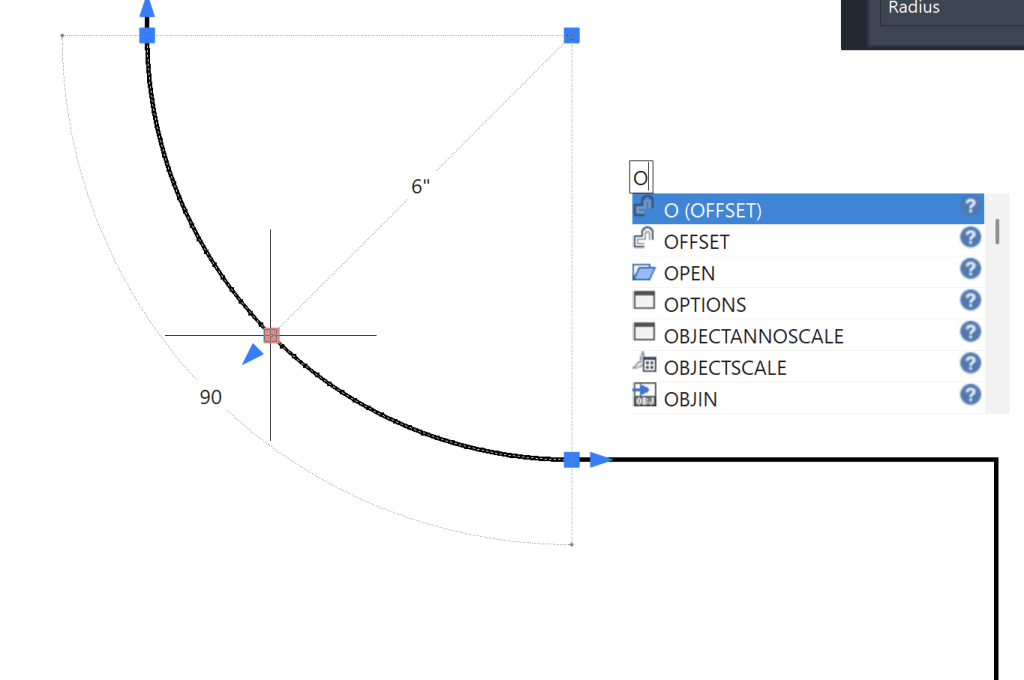
What is a tooltip?
A tooltip is the small pop-up box that appears near your cursor.
It shows:
- Command prompts
- Distances and angles
- Input fields while drawing
Think of it as “live feedback at your cursor.”
The 3 parts of Dynamic Input
Dynamic Input is made up of three parts:
Pointer input
- Shows coordinates near your cursor
- Lets you type values at the cursor
Dimension input
- Displays distances and angles dynamically
- Acts like a built-in measurement tool
Dynamic prompts (DYNPROMPT)
- Shows command prompts near your cursor
- Mirrors the command line
What does DYNPROMPT do?
DYNPROMPT controls where command prompts appear:
- ON → Prompts at your cursor
- OFF → Prompts in the command line
Command output stays the same—it just moves location away from the cursor.
The more you use commands and Dynamic Input together, the more natural and faster drafting starts to feel.
Want A Quick CAD Reference While You Work?
Download the free AutoCAD shortcut cheat sheet with commonly used commands, shortcuts, workflow tips, and drafting references.
👉 Get The Free CAD Cheat Sheet
A practical high-productivity setup
If your goal is speed and efficiency, this setup works extremely well:
- DYNMODE = 3
- DYNPROMPT = OFF
- Dimension Input = ON
- Autocomplete = ON
What does DYNMODE = 3 actually mean?
In AutoCAD:
- 0 → Dynamic Input OFF
- 1 → Pointer input only
- 2 → Dimension input only
- 3 → Pointer + Dimension input
For many users, this setup keeps the screen cleaner while still providing immediate command and dimension input at the cursor.
Why this setup works
With this configuration:
- You keep dynamic measurements at the cursor
- You remove prompt clutter from the cursor
- You rely on the command line for full control
Clean screen + useful feedback + fast workflow
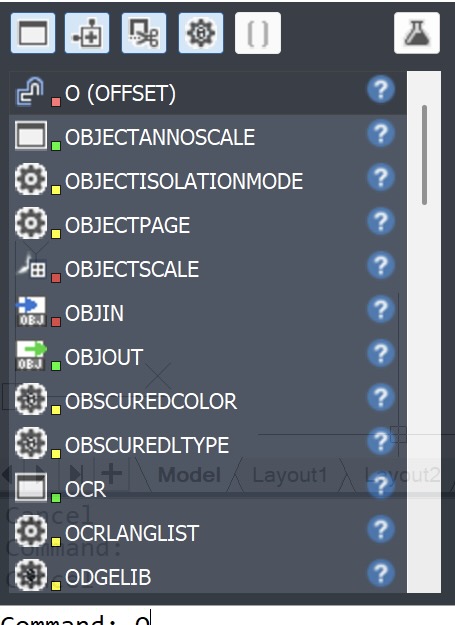
Why autocomplete matters
Autocomplete is one of the biggest productivity boosts.
Instead of typing full commands like:
ADDSELECTED
You can:
- Type a few letters
- Press Enter
- Select from suggestions
Less typing, faster execution, fewer interruptions
This is the same command-first workflow approach covered in our guide to learning AutoCAD commands faster.
Why most users overlook DYNMODE
Most users don’t ignore DYNMODE because it doesn’t work — they ignore it because it feels unfamiliar at first.
When you’re learning CAD, you’re already focused on drawing, commands, and getting things done. Adding dynamic input at the cursor can feel like extra noise instead of help.
So many users turn it off early… and never come back to it.
But the issue isn’t the feature itself — it’s how it’s introduced.
Once you understand what each part does and adjust it to your workflow, DYNMODE becomes much more useful.
Important clarification: DYNMODE is not just for beginners
Dynamic Input is often misunderstood as a beginner-only feature.
That’s not accurate.
DYNMODE is useful for:
- Quick measurements
- Visual feedback
- Faster cursor-based input
The difference is how it’s configured
- Beginners rely on prompts
- Experienced users refine and streamline it
What happens when you turn off DYNPROMPT?
When DYNPROMPT is off:
- Command prompts move to the command line
- Your screen becomes cleaner
- You rely more on command flow
Keep functionality, reduce distraction
Command line vs Dynamic Input
This is not a competition.
- Dynamic Input = Quick feedback and cursor input
- Command line = Full control and complete options
Understanding both allows you to switch when needed.
How to change these settings
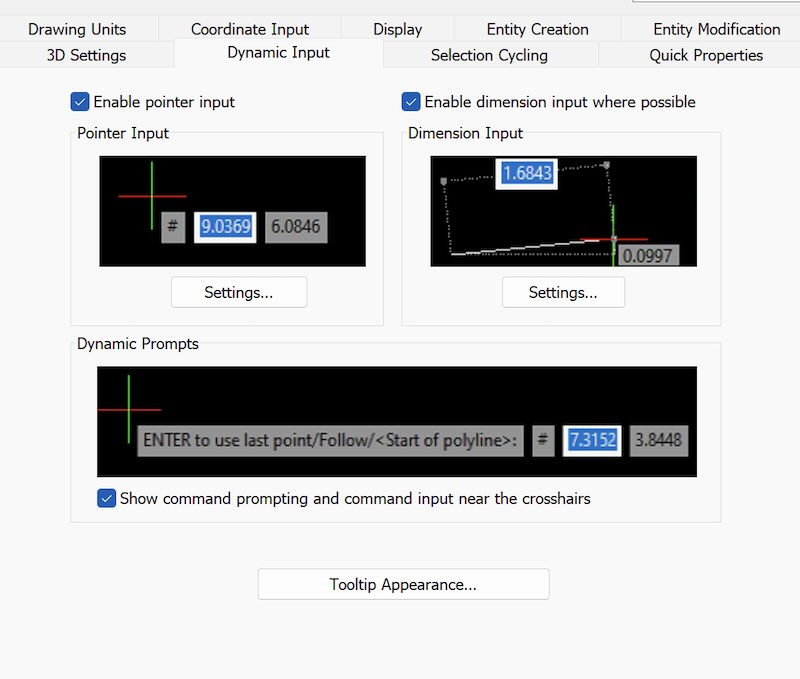
Option 1: Using the DS command
Type:
DS
Then:
- Go to the Dynamic Input tab
- Adjust Pointer Input, Dimension Input, and Dynamic Prompts
Best for full control and no variables to remember
Option 2: Using the status bar
At the bottom of the screen:
- Click the Dynamic Input icon
- Or right-click for settings
Fast access for quick changes
Option 3: Quick toggle
- Press F12 to turn Dynamic Input on or off
Great for testing your workflow
DYNMODE settings cheat sheet
DYNMODE values
- 0 → Dynamic Input OFF
- 1 → Pointer input ON
- 2 → Dimension input ON
- 3 → Pointer + Dimension input ON
Recommended: DYNMODE = 3
DYNPROMPT
- ON → Prompts at cursor
- OFF → Prompts in the command line
Recommended: OFF for cleaner workflow
Recommended setup
- DYNMODE = 3
- DYNPROMPT = OFF
- Dimension Input = ON
- Autocomplete = ON
Why your drawings may feel slow
If your workflow feels slow, it’s usually not just DYNMODE.
Common causes:
- Too much clicking
- Underuse of command shortcuts
- Background processes
- Corrupted drawings or templates
- Inefficient habits
Speed comes from workflow—not just settings
Quick command tips to try
ADDSELECTED
Select an object, then run ADDSELECTED.
Creates a new object with similar properties
MATCHPROP (MA)
Copies properties from one object to another.
Great for consistency
OFFSET (O)
Creates parallel copies.
Faster than redrawing
FILLET (F)
Creates clean corners.
Set radius to 0 to trim 2 lines
COPY (CO)
Copies objects quickly.
Combine with multiple selections for speed
Why these matter
Combined with autocomplete:
- You type less
- You click less
- You stay in command flow
This is where real speed comes from
Common mistakes with DYNMODE (and how to fix them)
Turning Dynamic Input off completely
The problem:
- You lose dynamic dimensions
- You lose visual feedback
Fix: Keep DYNMODE = 3 and adjust prompts
Leaving DYNPROMPT on when you don’t need it
The problem:
- Cluttered screen
- Interrupted workflow
Fix: Turn DYNPROMPT OFF
Ignoring autocomplete
The problem:
- Too much typing
Fix:
- Type partial commands
- Use suggestions
Relying too much on clicking
The problem:
- Slower workflow
- More mouse movement
Fix:
- Use commands
- Stay in keyboard flow
Not understanding DYNMODE settings
The problem:
- Incorrect assumptions
Fix:
- Use DS
- Explore Dynamic Input settings tab
Not testing Dynmode using F12
The problem:
- Permanent changes without testing
Fix:
- Toggle F12
- Compare workflows
Want a quick reference while you work?
Get the AutoCAD shortcut cheat sheet
Frequently asked questions
What does DYNMODE do?
Controls Dynamic Input near your cursor.
What is DYNPROMPT?
Controls whether prompts appear at the cursor or command line.
Should I turn off Dynamic Input?
No – Customize it instead.
What is the fastest workflow?
- Use commands
- Use autocomplete
- Reduce clicking
Is DYNMODE only for beginners?
No. It’s used by all users—configured differently.
What does F12 do?
Toggles Dynamic Input on or off.
You don’t need to choose between Dynamic Input and the command line.
Use both—intentionally
What experienced users do differently
Experienced users don’t just turn Dynamic Input on or off.
They adjust it.
They keep:
- The parts that help with speed
- The parts that provide useful feedback
And remove:
- Anything that adds clutter
- Anything that interrupts their workflow
That’s why the right setup makes such a big difference.
Many modern CAD platforms use similar command workflows, which is one reason learning commands and workflow matters more than memorizing the interface.
This is also why experienced users often transition more easily between AutoCAD and other AutoCAD-like CAD software.
Your next step
If you want to work faster in AutoCAD or any AutoCAD-like CAD software, start by learning the commands and workflow patterns that experienced users rely on every day.