
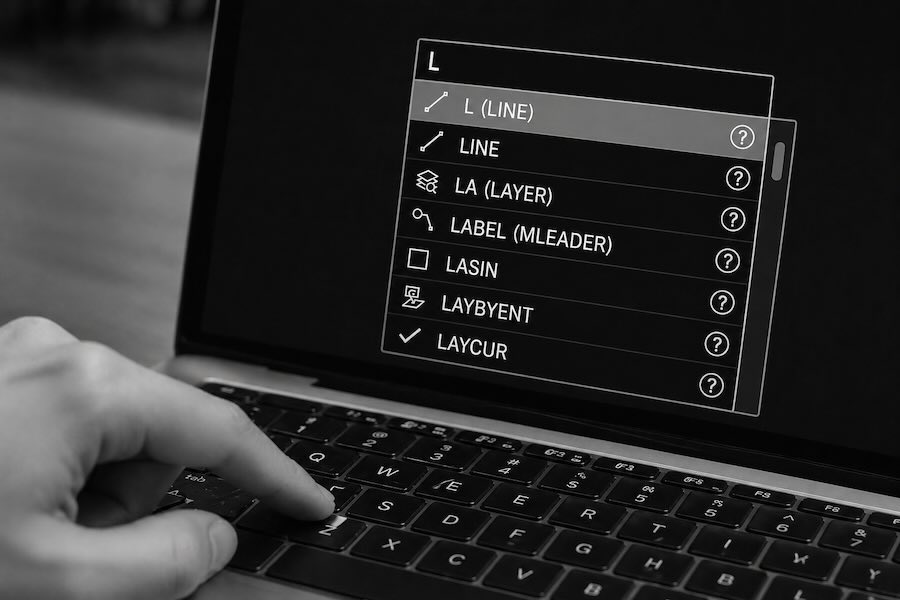
You don’t need to memorize AutoCAD commands to use them.
Most beginners struggle because they try to remember everything upfront instead of using commands as they draw.
There’s a simpler way.
Quick answer
The fastest way to learn AutoCAD commands is to use them as you draw. Start typing, use autocomplete, and repeat the commands you use most. Over time, they become second nature.
Why learning AutoCAD commands matters
AutoCAD was built around commands.
Most users struggle not because they don’t know them —
but because they don’t use them efficiently.
Commands help you:
- Work faster
- Stay focused on the drawing
- Build consistent workflows
Once you start using them, everything becomes easier.
Why commands feel hard at first
Commands feel difficult when you treat them like something you need to memorize.
That creates friction.
Instead of drawing, you’re trying to remember.
That slows everything down.
The easier way to learn commands
Think of commands as tools you discover while working.
Instead of memorizing:
- Start typing
- Look at suggestions
- Choose what you need
- Use it right away
This keeps you moving.
If you want to see how this works in a real example:
Use autocomplete to your advantage
AutoCAD helps you as you type.
Try this:
- Type L → you’ll see Line
- Type C → you’ll see Circle
- Type TR → you’ll see Trim
In most cases:
- 1–2 letters is enough
You don’t need the full command.
As you become comfortable with autocomplete, the next step is learning how to shorten commands even further using AutoCAD aliases.
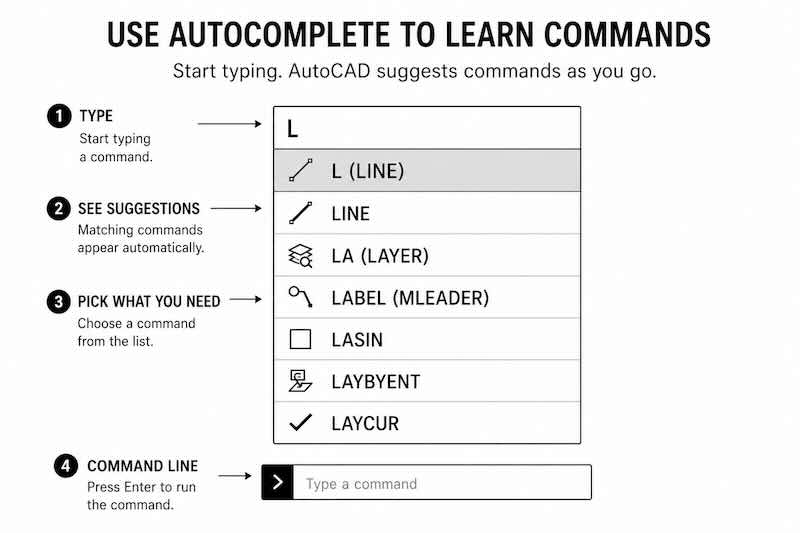
Here’s a shortcut cheat sheet to get started — keep it open while you draw.
Why this works
As you type:
- Commands are suggested
- You recognize familiar ones
- You can select them immediately
Over time, you naturally remember the ones you use most.
One setting that makes commands easier
If commands feel awkward, it’s often because of where you see them.
By default, the command line sits at the bottom of the screen.
That pulls your focus away from the drawing.
Turn on Dynamic Input (DYNMODE)
Set DYNMODE to 3
This allows you to:
- See commands near your cursor
- Enter values where you’re working
- Stay focused on the drawing
Why this helps
With Dynamic Input:
- Less eye movement
- Less mouse movement
- Faster input
- Easier learning
Tip: Dynamic Input and command aliases work especially well together. As you type, Dynamic Input displays command suggestions near your cursor, making it even easier to learn and remember your favorite shortcuts.
Commands become more visual and easier to follow.
Most beginners don’t struggle because AutoCAD is hard — they struggle because they were never shown how to use commands properly.
Why learning commands is worth it
There’s an old saying:
If it’s not broken, why fix it?
Commands aren’t outdated.
They’re still used because they work.
They help you:
- Stay focused on your drawing
- Reduce unnecessary clicks
- Build faster workflows
Once they become familiar, they’re often faster than any menu or toolbar.
Where the ribbon still makes sense
The ribbon isn’t bad.
It’s useful in the right situations.
For example:
- Contextual tools like the text editor
- Changing settings like Options or Drawing Settings
- Accessing features you don’t use often
The ribbon helps you find tools. Commands help you use them faster.
Where commands are better
For repeated work, commands are usually faster.
They help you:
- Stay focused on the drawing
- Avoid extra clicks
- Move through steps more smoothly
Use both — just know when
You don’t have to choose one or the other.
A simple way to think about it:
- Use the ribbon for setup and occasional tools
- Use commands for drawing and editing
If you use them this way, everything starts to feel more natural.
If you used commands before but stopped
Some users start with commands, then move to the ribbon over time.
That’s common.
The ribbon is helpful for exploring features.
But for repeated work, it often slows things down.
Many experienced users return to commands because they:
- Reduce extra clicks
- Keep focus on the drawing
- Make workflows more consistent
A simple way to get back into it
You don’t need to switch everything at once.
Start with:
- Typing one or two commands
- Using autocomplete
- Combining a few steps
From there, it builds naturally.
You don’t need to memorize commands
You don’t need to memorize commands—you need to use them. The more often a command becomes part of your daily workflow, the less you’ll think about it. Once that happens, creating your own aliases becomes the next logical step.
This is the key shift.
You’re not trying to remember everything.
You’re:
- Typing
- Selecting
- Using
- Repeating
That’s how commands stick.
You can make them even faster by creating your own custom aliases. Many experienced CAD users customize shortcuts for the commands they use every day.
How to learn AutoCAD commands
The fastest way to learn AutoCAD commands is to use them as you draw.
A simple approach:
- Start typing commands
- Use autocomplete suggestions
- Repeat the ones you use most
- Build small workflows
Over time, this becomes second nature.
Use a cheat sheet as a reference
A cheat sheet can help reinforce what you’re learning.
Keep it open or pinned near your workspace.
A cheat sheet is a great starting point, but don’t feel limited to the default commands. As your workflow develops, you can even create your own shortcuts that are easier to remember.
Use it to:
- Quickly find commands
- Remind yourself what to use
- Support your workflow
👉 Here’s a CAD shortcut cheat sheet to get you started:
Make it your own
As you work, you’ll naturally find commands you use often.
Add those to your own notes or reference.
This builds a workflow that fits how you work.
What to focus on
Instead of trying to learn everything:
- Focus on a small group of commands
- Use them often
- Combine them into simple workflows
That’s where real speed comes from.
Common questions
Do I need to memorize AutoCAD commands?
No. You can learn them naturally by typing and using autocomplete while you work.
What is the fastest way to learn AutoCAD commands?
Use commands while drawing, rely on suggestions, and repeat what you use most.
How many AutoCAD commands should I learn?
Start with a small group and build from there based on what you use.
Final thought
Learning AutoCAD commands doesn’t have to be difficult.
You don’t need to memorize them.
Just start using them — and they’ll come naturally over time.