
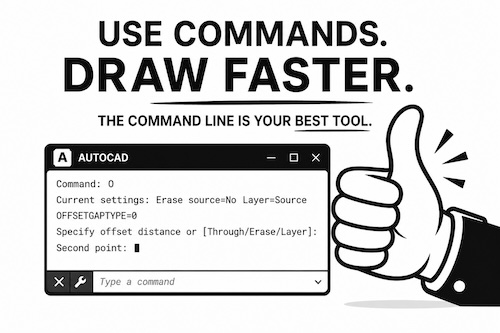
AutoCAD can feel confusing when you’re getting started — especially if you’re relying on menus and clicking through tools. The problem isn’t CAD itself, it’s how most people are introduced to it. Once you understand how commands and a simple workflow fit together, everything starts to make a lot more sense.
So is CAD feeling harder than it should?
Quick Answer:
AutoCAD can feel confusing – most beginners will rely on clicking the ribbon instead of using commands. Once you switch to commands and a simple workflow, it becomes much easier to use.
Most people don’t struggle with CAD because they can’t learn it…
They struggle because:
- They click too much (reply too much on the UI)
- They choose menus and toolbars to navigate and draw
- They don’t understand how the CAD core actually works
- They develop a workflow that works against them
Once you understand a few key ideas about commands, everything starts to make sense.
Why is CAD so confusing for beginners?
CAD feels confusing because most beginners are shown tools before they understand how CAD actually works and how it was originally designed.
They:
- Click Buttons Instead Of Using Commands
- Jump Between Menus
- Don’t Have A Clear Workflow
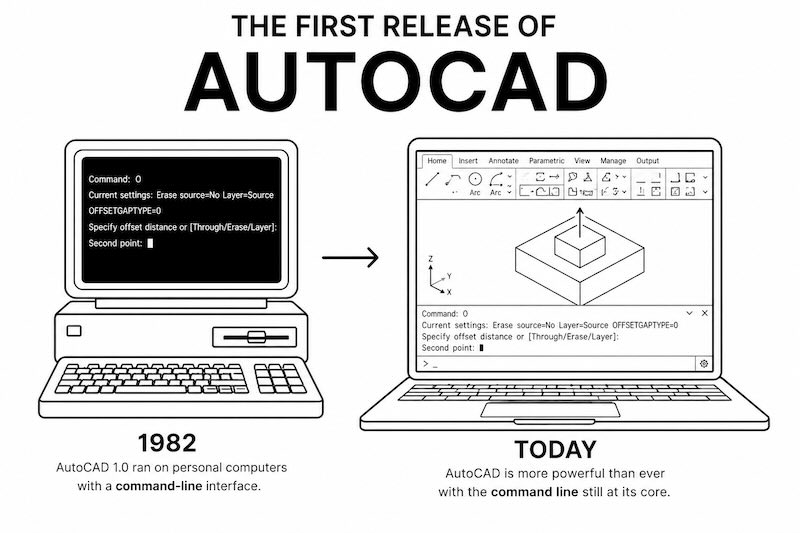
CAD didn’t start with menus.
It started with commands.
The menus came later.
At its core, AutoCAD is still built around commands — and once you use them, everything becomes simpler.
Quick check
Do any of these sound familiar?
- You Spend More Time Looking For Tools Than Drawing
- Your Drawings Don’t Come Out The Way You Expect
- You’re Not Sure Which Command To Use Next
- CAD Feels Harder Than It Should
If you said yes to any of these, you’re not alone.
The good news — this is fixable once you see how CAD actually works.
Why clicking slows everything down
When you rely on menus:
- You Hunt For Tools
- You Move Your Eyes Away From The Drawing
- You Lose Your Flow
That’s why CAD feels slow and frustrating.
Commands fix that.
You stay focused and just draw.
4 Common Mistakes Beginners Make in CAD
If CAD feels frustrating, chances are you’re running into one of these.
1. Clicking everything instead of using commands
This is the biggest one.
Relying on menus and toolbars:
- Slows You Down
- Breaks Your Focus
- Makes CAD Feel Harder Than It Is
CAD was built around commands.
Once you start using commands, drawing becomes faster and more consistent.
2. Trying to learn too many tools at once
AutoCAD has hundreds of tools.
You don’t need most of them.
Focus on a small group:
- Line
- Rectangle
- Circle
- Trim
- Offset
- Mirror
These handle a large percentage of everyday drawing.
👉 If you’re not sure how to actually learn and use these commands, this next step will help:
How to learn AutoCAD commands (without memorizing them)
3. Not combining commands into a workflow
Many beginners treat commands as separate steps.
But the real power comes from combining them one after the other.
Example:
- Draw Line (L)
- Offset (O)
- Trim (TR)
- Mirror (MI)
When you start chaining commands together, your speed improves quickly.
4. Stopping to think “what tool do I use next?”
This usually happens when you rely on menus.
You pause, look around, and lose momentum.
With commands:
- You Stay In Flow
- You Know What Comes Next
- You Keep Moving
That’s when CAD starts to feel easier.
How can I learn CAD faster?
You don’t need to learn everything.
Most drawings use a small group of commands:
- Line
- Rectangle
- Circle
- Trim
- Offset
- Mirror
If you focus on these and practice using them together, you’ll improve much faster than trying to learn every tool.
Do I need to learn all the tools in AutoCAD?
No. Most beginners should start with a few core commands like Line, Rectangle, Circle, Trim, Offset, and Mirror.
Most users only need a small percentage of the available tools. And that works to your advantage.
What matters is:
- Understanding How Commands Work
- Knowing How To Combine Them
- Building A Simple Workflow
- Simplify your command input using DYNMODE
Once you have that, everything else becomes easier to learn.
Everything starts to change
Once you start using commands:
- Drawing Becomes Faster
- Editing Becomes Easier
- You Stop Guessing What To Click
Even a few basic commands can make a big difference.
See it step-by-step
If you want to see how this works in a real example:
You’ll see how to draw using commands instead of clicking through menus.
A printable guide to get you started
If you want something you can keep open while you work:
👉 Get the CAD shortcuts cheat sheet — includes the exact commands and workflow used here
It includes:
- The Commands Used Most Often
- Simple Workflow Tips
- A Quick Reference While You Draw
Quick answers to learning shortcuts
Why is AutoCAD so hard for beginners?
Most beginners rely on menus and don’t understand how commands work.
How do I learn CAD quickly?
Focus on a small set of commands and practice using them together.
What is the easiest way to start CAD?
Learn basic commands first and use them to draw simple objects.
One final thought to take with you
CAD doesn’t have to feel confusing.
Once you understand how commands work, everything starts to click.
Start simple, focus on a few key tools, and build from there.