
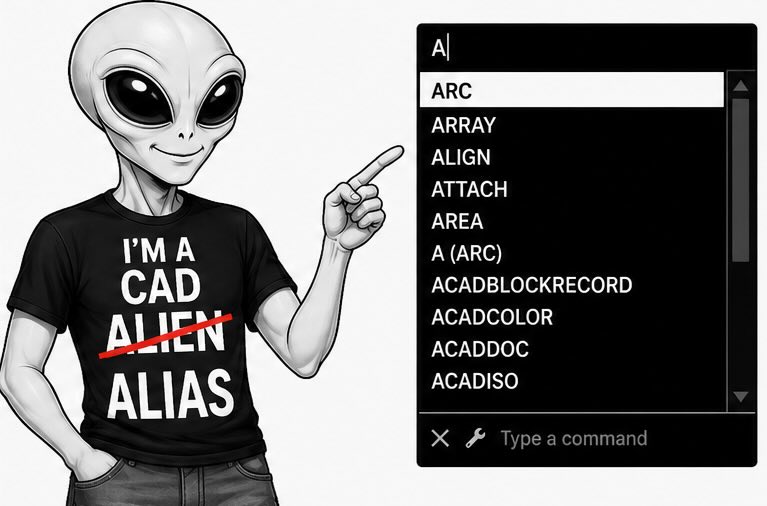
AutoCAD becomes much faster when you stop doing repetitive tasks the long way. Many users rely on menus, toolbars, and repeated mouse clicks without realizing there’s a much simpler way to work.
The best part is that you’re not limited to AutoCAD’s default aliases—you can create shortcuts that match the way you think and work.
AutoCAD command aliases help reduce typing, minimize unnecessary clicks, and keep your focus on the drawing rather than constantly searching the interface.
Learning just a handful of AutoCAD command aliases can dramatically improve your workflow. Instead of searching for commands, you’ll begin launching them almost without thinking.
Small shortcuts. Big productivity gains.
Think Like An Experienced CAD User
There’s a simple idea behind this: sometimes the “lazy” path is actually the productive one.
Experienced CAD users don’t necessarily know more commands—they simply use the ones they know more efficiently.
The goal isn’t to memorize more commands. It’s to remove friction from your workflow so you spend less time typing and searching, and more time drawing.
That’s also why learning how AutoCAD commands work together is often more valuable than memorizing hundreds of commands individually.
This is also why learning how AutoCAD commands connect is often more important than memorizing hundreds of commands individually.
What Are AutoCAD Command Aliases?
AutoCAD command aliases are shortened versions of command names that let you launch commands with fewer keystrokes. You can also create your own aliases to match the way you work.
Instead of typing full commands like:
RECTANGLE
You can simply type:
REC
These AutoCAD shortcut commands help improve CAD workflow by reducing interruptions, minimizing clicks, and keeping your focus on the drawing instead of the interface.
- Common benefits include:
- More consistent drawing habits
- Faster command input
- Less typing
- Smoother workflow
- Fewer interruptions
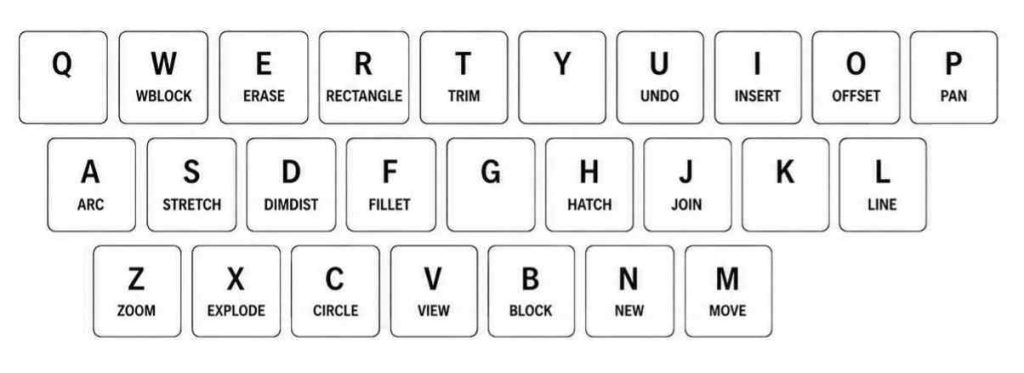
Common Short Commands (1–3 Letters)
Here are some of the most commonly used AutoCAD alias commands already built into AutoCAD:
- L → Line
- C → Circle
- REC → Rectangle
- PL → Polyline
- TR → Trim
- EX → Extend
- O → Offset
- CO → Copy
- MI → Mirror
- M → Move
- ST → Style
- DT → Single Line Text
- MT → Multiline Text
- D → Dimension Style
- OS → Object Snap Settings
- WB → Write Block
- RO → Rotate
- SC → Scale
- F → Fillet
- CHA → Chamfer
- X → Explode
- E → Erase
- B → Block
- LA → Layer Properties
- DI → Distance
- Z → Zoom
- P → Pan
- XL → Construction Line
- S → Stretch
- MA → Match Properties
- H → Hatch
- VP → Viewport
And there are lots more.
You don’t need to memorize all these aliases at once. Start with five or six commands you use every day. As they become second nature, add another one or two. Within a few weeks, you’ll notice you’re spending far less time searching for commands and much more time drawing.
One of the easiest ways to discover more AutoCAD alias commands and shortcut commands is to simply start typing letters at the command line.
For example:
- Type A to see AutoCAD commands beginning with A
- Type B to see commands beginning with B
- Continue experimenting with different letters and command combinations
This is also where Dynamic Input (DYNMODE) becomes extremely useful because command suggestions and input prompts appear directly near the cursor while you draw.
If you’re unfamiliar with Dynamic Input settings, here’s a deeper explanation of how DYNMODE works and why many experienced CAD users rely on it for faster command workflow.
Over time, this becomes one of the fastest ways to learn commands naturally without trying to memorize everything at once.
Why AutoCAD Alias Commands Make Such A Big Difference
Using AutoCAD alias commands and shortcut commands changes how you interact with the software over time.
Instead of constantly searching through menus and toolbars, you begin staying focused on the drawing itself. This reduces interruptions, minimizes unnecessary typing and clicking, and creates a faster, more consistent CAD workflow.
Many experienced AutoCAD users rely heavily on aliases because they help commands feel more natural and easier to repeat throughout the drawing process.
This is one of the simplest ways to improve drawing speed and workflow efficiency in AutoCAD.
A Better Way To Think About CAD Workflow
The fastest AutoCAD users are usually not the ones working harder.
They are the ones constantly looking for ways to simplify their CAD workflow and remove unnecessary steps from the drawing process.
Instead of repeating the same actions over and over, they naturally begin asking:
- Is there a shortcut?
- Can this be simplified?
- Is there a faster way to do this?
This is where AutoCAD alias commands and shortcut commands start making a major difference. They help reduce extra clicking, shorten repetitive actions, and create a workflow that feels faster and more natural over time.
Experienced users don’t automatically accept the long way as the default workflow.
You’re Probably Already Using AutoCAD Alias Commands
Most AutoCAD users already rely on a few AutoCAD alias commands without even thinking about it.
Common examples include:
- L for Line
- C for Circle
- TR for Trim
The problem is not whether users know aliases exist. The problem is that many CAD users never develop a consistent command-based workflow around them.
Over time, most users develop their own workflow habits based on repetition, convenience, and whatever seems fastest in the moment.
What Actually Happens In AutoCAD
When most users first start learning AutoCAD, no one really explains how the software actually works behind the interface.
This is one reason many beginners feel overwhelmed by CAD at first — the interface is often introduced long before the workflow and commands are properly explained.
So naturally, users begin figuring things out on their own. They:
- Click on tools that seem familiar
- Use a few commands they remember
- Repeat whatever appears to work
Over time, these habits slowly become their default CAD workflow.
The problem is that many of these workflows are built around convenience and repetition instead of efficiency. Users eventually complete the drawing—but often with far more clicking, searching, and repeated steps than necessary.
This is one reason AutoCAD alias commands and shortcut commands can make such a major difference over time. They help simplify repetitive actions and create a workflow that feels faster, cleaner, and more intentional. Over time, this doubles the amount of work required to complete a drawing.
What AutoCAD Is Actually Doing
Every time you click a tool in AutoCAD, the software is running a command in the background.
If you pay attention to the command line, you’ll start noticing that nearly every ribbon button, toolbar icon, and interface action is simply launching a command you could type yourself.
In other words, AutoCAD is constantly connecting:
- The icon in the ribbon or toolbar you clicked
- To a command you could have typed
This is one of the most important concepts for improving CAD workflow because it shifts your focus away from constantly searching through the interface and toward understanding how commands actually work together.
Once users begin to understand this relationship, AutoCAD alias commands and shortcut commands start to feel much more natural and easier to use consistently.
What This Means For Your CAD Workflow
Instead of relying entirely on clicking and repetitive habits, you can begin focusing on the commands themselves and how they connect.
That’s the real foundation of AutoCAD workflow.
You do not need to understand programming or complicated code behind the software. You simply need to understand:
What the core commands do
How commands connect together
How your workflow is actually being built
A productive CAD workflow is not just a collection of random habits. It’s a collection of commands used intentionally and repeated consistently throughout the drawing process.
Most workflows eventually become a pattern of:
- Draw
- Modify
- Adjust
- Repeat
Once users understand this, AutoCAD alias commands and shortcut commands become much easier to apply naturally because they fit directly into the workflow itself.
Over time, this creates a CAD workflow that becomes:
- More consistent
- Easier to learn
- Easier to transfer between CAD programs
- Faster and more efficient overall
What Your Workflow Really Is
A good workflow is not a collection of habits.
It’s a collection of commands used intentionally.
- Draw
- Modify
- Adjust
- Repeat
When you understand this, your workflow becomes:
- More Consistent
- Easier To Learn
- Easier To Transfer To Other CAD Programs
Why AutoCAD Alias Commands Are Often Overlooked
Most users are introduced to AutoCAD through the interface—menus, ribbons, toolbars, and buttons.
Because of that, many CAD users learn where tools are located rather than understanding how commands and workflows actually work together.
When users rely too heavily on the interface:
- More time is spent searching for tools
- Focus constantly moves away from the drawing
- CAD workflow becomes slower and more interrupted
AutoCAD aliases and shortcut commands help solve this by reducing unnecessary movement and keeping your attention focused on the drawing process itself.
This is one reason experienced CAD users come to rely so heavily on a command-based workflow over time.
Why Most AutoCAD Users Stop Here
Many AutoCAD users learn a handful of default alias commands and never go much further.
They typically:
- Use whatever aliases AutoCAD already provides
- Avoid customizing commands or workflow
- Assume the default setup is the only option
But AutoCAD alias commands are far more flexible than many users realize.
Most users discover a handful of aliases such as L, C, and TR, then stop exploring for more.
The reason isn’t that the other shortcuts are not important.
It’s because most users don’t realize that aliases are completely customizable.
Once you realize you can create shortcuts that match the way you think, AutoCAD becomes much more personal—and much faster.
AutoCAD allows you to customize shortcut commands and create aliases that match the way you naturally think and work. This is where the command-based workflow starts to become more personal, efficient, and easier to repeat consistently.
You are not limited to the default workflow AutoCAD provides.
How to Create AutoCAD Aliases
AutoCAD allows you to create your own custom AutoCAD command aliases using the built-in alias editor or the PGP alias file.
This means your AutoCAD shortcut commands can be customized to match how you naturally work, rather than relying entirely on the default setup.
For example, instead of using:
- REC → Rectangle
You could create simpler aliases such as:
- R → Rectangle
- OR → Offset
- X → Explode
Over time, these small workflow adjustments help reduce repetitive typing, speed up command input, and create a CAD workflow that feels faster and more personal to the way you draw.
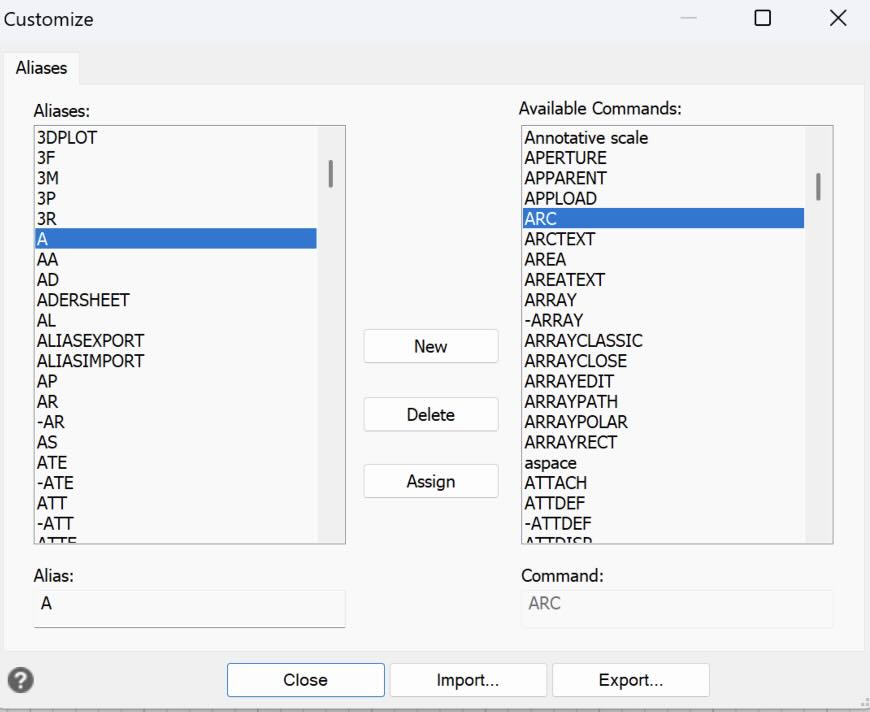
How To Edit AutoCAD Alias Commands
You can create or modify AutoCAD alias commands using the built-in Alias Editor or the AutoCAD PGP alias file.
Basic workflow:
- Type ALIASEDIT
- Add your custom alias and command
- Save your changes
- Reload using REINIT or restart AutoCAD
Keep the process simple at first.
Focus on AutoCAD shortcut commands you use frequently throughout your normal CAD workflow instead of trying to customize everything at once.
A few well-chosen alias commands can significantly improve workflow speed and reduce repetitive typing over time.
Example: Create AutoCAD Alias Commands That Make Sense To You
One of the advantages of custom AutoCAD alias commands is that you can create shortcut commands based on the way you naturally think instead of relying entirely on AutoCAD terminology.
For example, consider the command:
ADDSELECTED
This AutoCAD command creates a new object with the same properties as an existing object, helping avoid repeatedly setting layers, styles, and other drawing properties manually.
Instead of typing the full command name, you could create a shortcut alias such as:
- DBE → Draw By Example
Now the command becomes easier to remember because it describes the actual workflow action you are performing.
Instead of rebuilding settings manually, you simply select something that already works and continue drawing with those same properties.
Example: Turn Complex AutoCAD Commands Into Simple Actions
Some AutoCAD commands are extremely useful, but the command names do not always align with how users naturally think about the workflow.
This is where custom AutoCAD alias commands and shortcut commands become especially powerful.
For example:
GETSELECTION
allows you to reuse a previous selection set without selecting the objects again.
Instead of relying on the original command name, you could create aliases such as:
- GS → Get Selection
- GS → Grab Selection
Notice that “GS” doesn’t have to stand for the exact command name. It only reminds you what the command does.
Another example is:
BLOCKREPLACE
which allows you to replace one block with another without manually deleting and reinserting it.
You could create shortcut commands such as:
- BLR → Block Replace
- BLR → Replace Block
In both examples, the alias is based on the workflow action itself rather than memorizing the exact AutoCAD command name.
And because every CAD user thinks differently, the best aliases are the ones you’ll remember six months from now without looking them up.
Think In Actions, Not Commands
One of the biggest changes you can make is to stop memorizing command names and start thinking about what you’re trying to accomplish.
Instead of remembering:
- ADDSELECTED
- BLOCKREPLACE
- GETSELECTION
Think:
- Select Similar
- Replace Block
- Get Similar Objects
When your aliases describe the action instead of the command name, they’re much easier to remember—and much more likely to become part of your daily workflow.
Why Custom AutoCAD Alias Commands Work So Well
Custom AutoCAD alias commands are often easier to remember because they are based on your own workflow habits and the way you naturally think while drawing.
Instead of memorizing exact AutoCAD terminology, you begin creating shortcut commands that describe the actual action you want to perform.
This works well because:
- You assign your own meaning to the command
- The alias matches your natural workflow
- You reduce the need to memorize long command names
- Commands become easier to repeat consistently
Over time, this creates a CAD workflow that feels more personal, efficient, and easier to use throughout the drawing process.
Important Tips For AutoCAD Alias Commands
When creating custom AutoCAD alias commands and shortcut commands, simplicity is usually the best approach.
Focus first on the commands you use frequently in your normal CAD workflow, rather than trying to customize everything at once.
A few practical guidelines:
- Keep aliases simple and easy to remember
- Focus on frequently used AutoCAD commands
- Stay consistent with your naming approach
- Test and refine your workflow over time
- Avoid creating unnecessary complexity
You do not need dozens of custom aliases to improve workflow speed.
In many cases, a small number of well-chosen AutoCAD shortcut commands can significantly reduce repetitive typing and create a much smoother drawing workflow over time.
What Experienced AutoCAD Users Do Differently
Experienced AutoCAD users do not simply rely on the default shortcut commands and workflow settings provided by the software.
Over time, they gradually adjust AutoCAD alias commands, interface settings, and command workflows to better match how they naturally draw and interact with CAD.
They tend to keep:
- The parts of the workflow that improve speed
- The commands that provide useful drawing feedback
- The shortcuts they use repeatedly throughout the day
And they remove or reduce:
- Unnecessary interface clutter
- Repetitive clicking and searching
- Workflow interruptions that slow down drawing
This is one reason experienced CAD users often appear much faster and more efficient. Their workflow has usually been simplified and refined over time through practical use rather than memorizing more tools.
The “Lazy” Workflow Is Often The Smarter Workflow
A faster AutoCAD workflow does not usually come from working harder. It comes from removing unnecessary steps, reducing repetitive actions, and building a workflow that keeps your attention focused on the drawing instead of constantly searching through the interface.

AutoCAD alias commands and shortcut commands are powerful because they simplify the drawing process over time. The less energy spent repeating commands, searching for tools, and typing unnecessary input, the more natural and efficient CAD workflow begins to feel.
One thing you’ll notice when watching experienced CAD users is that they rarely stop to look for tools. Their workflow becomes almost automatic because they rely on commands and aliases that make sense to them.
Sometimes the “lazy” path is not lazy at all—it’s simply the smarter workflow.
Continue Improving Your AutoCAD Workflow
Remember, you don’t need hundreds of shortcuts to get started. Start with a few, customize them as your workflow grows, and gradually let your keyboard take on more of the workload.
If you’re starting to rely more on commands, aliases, and shortcut workflows, these resources can help simplify the learning process even further:
Learn AutoCAD Commands (Without Memorizing Them)
Understand how the command-based CAD workflow actually works so drawing becomes faster and more natural over time.
Download The AutoCAD Shortcut Cheat Sheet
Get a printable quick-reference guide covering practical AutoCAD commands, shortcut commands, and workflow tips used every day by experienced CAD users.